How to save a selected clip or just its audio
In Playphrase.me, download the specific video example you are watching. In ordinary search, open Download video for the clip. Clip Search provides a download button on the card and in the viewer.
Check the scene first. The same words can occur in different movies, and Download applies to the particular clip from which you opened the dialog.
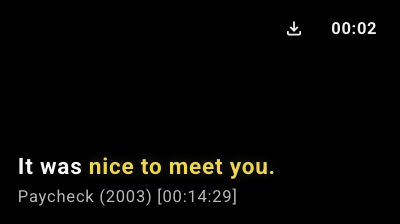
Video with or without text
To save a video, turn off Audio only and choose a Video Size. Enable Karaoke Subtitles adds the line's text with spoken words highlighted.
Translate Language adds a translation. For lesson material, for example, you could keep the English line and choose a Russian translation. Leave the field empty when no translation is needed. The main text and translation have separate size settings.
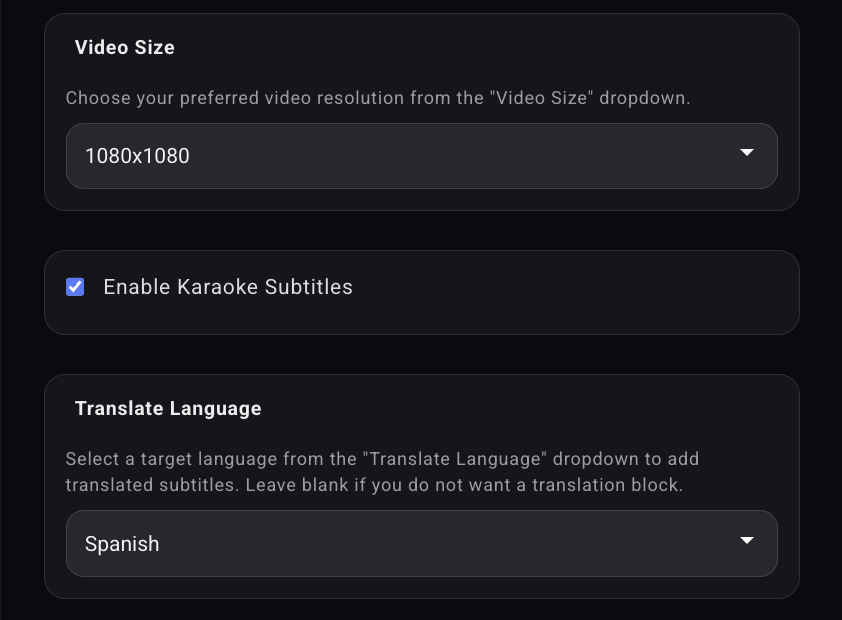
After choosing the options, select Download Video to save the prepared clip with that presentation.
Audio only
Turn on Audio only for a sound file. Audio Format replaces the picture settings. Choose a format; M4A is marked as recommended. Then select Download Audio.
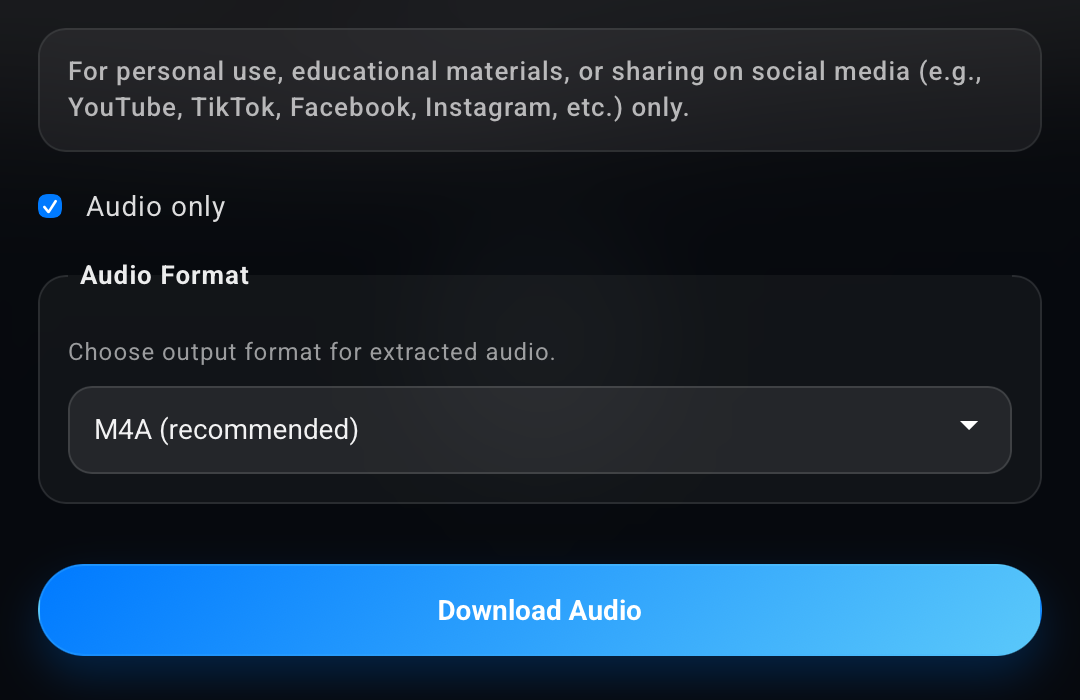
Choose according to the material you are preparing. Video retains facial expressions, actions, and on-screen text. Audio suits a listening example without visual clues.
If you want to return to the phrase across different scenes, save the query in Favorites. That gives you a set of examples to revisit rather than only one downloaded excerpt.