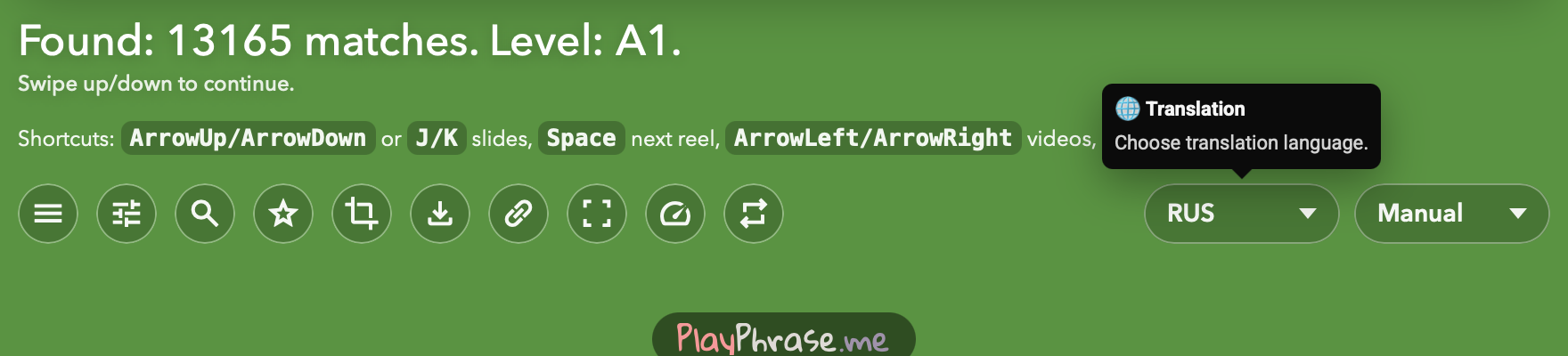
How to choose playback speed, repeats, and phrase changes
Playphrase.me lets you slow speech, repeat a clip, or set when phrases change. These settings affect different parts of listening.
Speed: hear a line more slowly
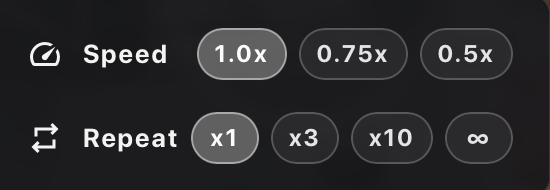
Speed changes video speed. Choose normal 1.0x, or slower 0.75x and 0.5x. When words run together in a fast line, listen more slowly, then return to 1.0x to hear the original pace.
Repeat: hear the same clip several times
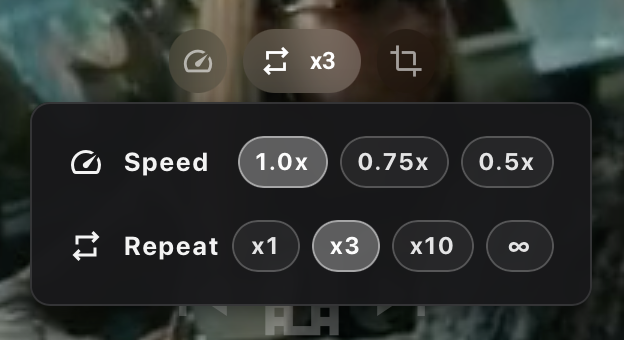
Repeat sets the number of plays for each video. With x3, a clip plays three times before the next example of the same query begins. That next clip also plays three times.
x1 plays each clip once, and x10 gives a longer sequence. ∞ keeps the current clip repeating until you move on or change the setting.
In ordinary desktop search, right-click the video to open Speed and Repeat. The current values also appear on the playback controls.
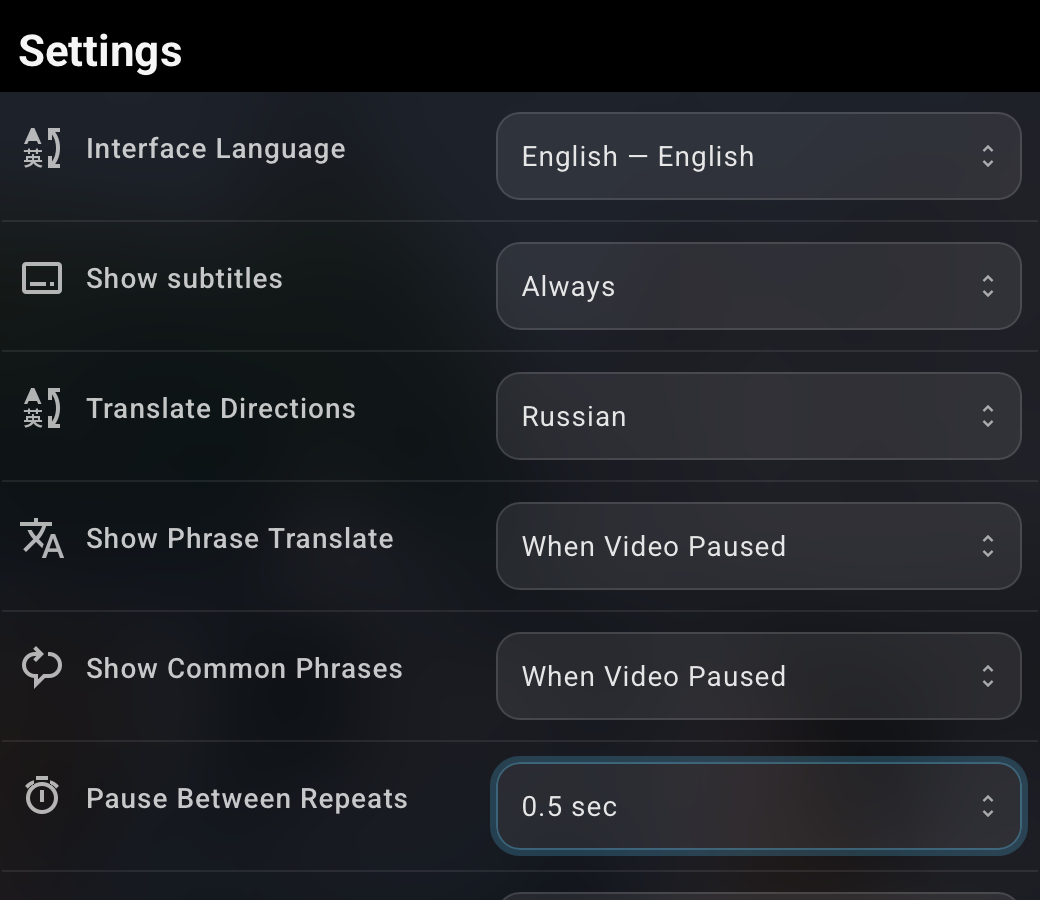
Auto-advance: change the phrase itself
This setting belongs to Reels. While one card is open, videos play for its phrase. Auto-advance determines when to move to a card with a different query.
Manual leaves that choice to you. 5 videos, 10 videos, and 30 videos advance after a number of clips; 30 sec and 1 min advance by time.